

PS5 Storage Full? 7 Easy Ways to Free Up Space (2026)
Technology Guide | Published by: Mehedi Hasan | Updated: 12 November 2026
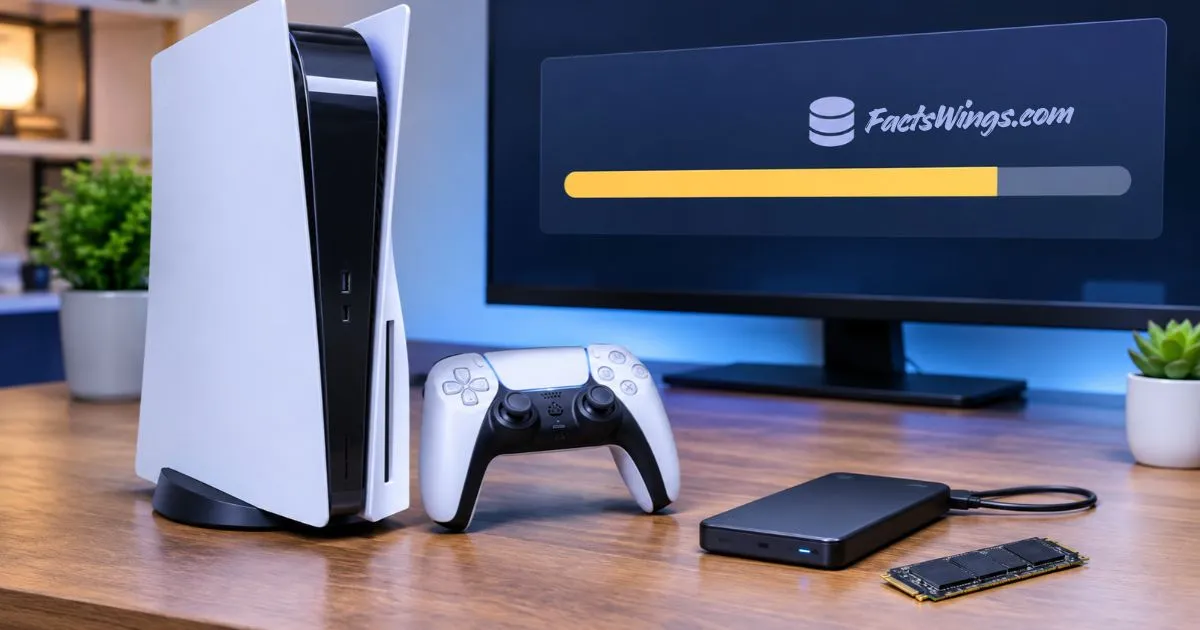
A nearly full PS5 storage drive can prevent players from installing new games and updates. Image: FactsWings.
Is your PS5 showing a storage full message when you try to download a new game or update? You are not alone. Modern PlayStation games can take up a large amount of storage space, especially when you install several major titles at the same time.
The good news is that you do not always need to buy a new SSD. You can free up space by removing games you no longer play, deleting unnecessary media files, moving games to an external drive, or managing your storage more carefully.
In this guide, we explain seven practical ways to free up PS5 storage in 2026. Each method includes simple instructions so you can follow along without advanced technical knowledge.
Check Your PS5 Storage First
Before deleting anything, check which files are using the most space. Your PS5 has a built-in storage management tool that shows how much space is used by games, applications, media content, and other data.
Follow these steps:
- Turn on your PS5 console.
- Go to the home screen.
- Open Settings.
- Select Storage.
- Choose Console Storage.
You can now review the available storage and see which categories are taking up the most space.
This step is important because deleting a large game can free up much more space than removing a few small screenshots. Check the storage information first so you can choose the best method.
1. Delete Games You No Longer Play
One of the easiest ways to free up space on your PS5 is to delete games you have finished or no longer play.
Modern games can use a significant amount of storage. Some titles also receive large updates and additional content over time. Keeping every installed game can quickly fill your console’s internal SSD.
How to delete games on PS5
- Open Settings from the home screen.
- Select Storage.
- Choose Console Storage.
- Open Games and Apps.
- Select the game you want to remove.
- Choose Delete and confirm your selection.
Before deleting a game, check whether you still need its saved data. Game installations and saved progress are managed separately, so deleting a game does not automatically mean you must delete its saved data.
If you own a digital game, you can normally download it again from your Game Library using the account that purchased it, subject to the game’s availability and license conditions. For disc-based games, you will generally need the disc to reinstall and play the game.
Pro tip: Review your installed games every few weeks. Removing titles you rarely play can help keep enough free space for new downloads and updates.
2. Remove Unnecessary Game Add-ons
Some PS5 games include extra downloadable content. These files may include additional campaigns, language packs, game modes, or other optional content.
You may not need every add-on installed all the time. Removing content you do not use can help free up storage without deleting the entire game.
How to remove game add-ons
- Go to Settings.
- Select Storage.
- Open Console Storage.
- Select Games and Apps.
- Find a game that has a Customize option.
- Open the customization menu.
- Select the unwanted content and remove it.
The exact options depend on the game. Not every game allows you to remove individual content files.
For example, a game may allow you to remove an optional campaign or an add-on that you no longer use while keeping the main game installed.
Be careful when removing content. Make sure you understand what each add-on does before deleting it. You may need to download it again if you want to use it later.
3. Move PS5 Games to USB Extended Storage
If you do not want to delete your PS5 games, USB extended storage can be a useful option.
A compatible external USB drive can store PS5 game files and help you make room on the console’s internal SSD. This is especially helpful for games you have finished but may want to play again later.
However, there is one important limitation: PS5 games cannot be played directly from USB extended storage. You must move them back to your console storage or compatible M.2 SSD before playing.
How to move PS5 games to USB storage
- Connect a compatible USB drive to your PS5.
- Make sure it has been formatted as USB extended storage.
- Open your Game Library.
- Highlight the game you want to move.
- Press the Options button on your controller.
- Select Move Games and Apps.
- Choose the games and confirm the move.
USB extended storage must meet Sony’s compatibility requirements. PlayStation specifies a minimum capacity of 250 GB and a maximum capacity of 8 TB for supported extended storage drives.
This method is useful if you have several large PS5 games but do not want to download them again later.
4. Move PS4 Games to an External Drive
If you play PS4 games on your PS5, you have another useful storage option.
Unlike PS5 games, compatible PS4 games can be played directly from a properly configured USB extended storage drive. This means you can move supported PS4 games away from your internal console storage and still play them without moving them back every time.
How to move PS4 games to USB extended storage
- Connect a compatible USB drive to your PS5.
- Format it as USB extended storage if necessary.
- Open Settings.
- Select Storage.
- Choose Console Storage.
- Open Games and Apps.
- Select the PS4 games you want to move.
- Choose the option to move the selected games to USB extended storage.
You can also use USB extended storage as the installation location for supported PS4 games.
This is a practical solution for players who enjoy older PlayStation titles and want to keep their PS5 internal storage available for newer games.
Remember that the external drive must remain connected when you want to play games stored on it.
5. Install an Additional M.2 SSD
If you regularly install large games, adding an M.2 SSD may be one of the best long-term solutions.
Unlike USB extended storage, a compatible M.2 SSD can store and run PS5 games directly. You can also download games to the additional SSD and move games between the console’s built-in storage and the expansion drive.
This makes an M.2 SSD a useful option for players who want more storage without repeatedly deleting and reinstalling games.
What should you check before buying an M.2 SSD?
Not every M.2 SSD is compatible with the PS5. Sony requires a supported PCIe Gen4 x4 NVMe M.2 SSD that meets its technical requirements.
Important specifications include:
- PCIe Gen4 x4 NVMe interface.
- Supported M.2 form factor.
- Storage capacity between 250 GB and 8 TB.
- Recommended sequential read speed of 5,500 MB/s or faster.
- Required cooling structure, such as a suitable heatsink.
- Physical dimensions that fit the PS5 expansion bay.
Always check Sony’s latest compatibility requirements before purchasing a drive. The heatsink and total dimensions must fit the console correctly.
How to install an M.2 SSD
- Turn off your PS5 completely.
- Disconnect the power cable and other connected cables.
- Allow the console to cool down.
- Remove the cover according to Sony’s installation instructions.
- Open the M.2 expansion slot cover.
- Install the compatible SSD securely.
- Replace the covers and reconnect the console.
- Turn on the PS5 and follow the formatting instructions.
If you are not comfortable opening your console, consider getting help from a qualified technician. Follow the official installation guide for your particular PS5 model.
6. Delete Unwanted Screenshots and Videos
Game captures can also take up storage space. If you frequently record gameplay, save screenshots, or capture long video clips, these files can gradually use a noticeable amount of storage.
Review your Media Gallery and remove files you no longer need.
How to delete screenshots and videos
- Go to the PS5 home screen.
- Open Media Gallery.
- Browse your screenshots and video clips.
- Select the files you no longer need.
- Choose the delete option and confirm.
Before deleting important clips, consider copying them to a compatible USB drive. This is useful if you want to keep your favorite gameplay recordings without storing everything on the console.
You can also review your automatic capture settings. Some games may automatically save certain gameplay moments or trophy-related clips. Adjusting these settings can help reduce unnecessary media files over time.
However, do not delete a video or screenshot until you are sure you no longer need it. Once removed, you may not be able to recover it unless you have another copy.
7. Manage Saved Data Carefully
Saved data stores your game progress, settings, and other information. It is important to understand the difference between saved game data and installed game files.
Deleting an installed game and deleting its saved data are not the same thing. If you remove saved data without a backup, you may lose your game progress.
PlayStation Plus members can use cloud storage for supported saved data. This allows them to upload and download saved game progress through their PlayStation account.
How to manage saved data on PS5
- Open Settings.
- Select Saved Data and Game/App Settings.
- Choose Saved Data (PS5) or Saved Data (PS4).
- Review the available upload, download, and delete options.
- Back up important data before deleting anything.
For PS5 saved data, PlayStation Plus cloud storage is the supported cloud backup option. PS4 saved data can also be copied to a compatible USB drive.
Remember that cloud storage is not a replacement for understanding what you are deleting. Check your saved files and account synchronization before removing anything important.
Saved data is not always the biggest reason for a full PS5 drive. However, reviewing it carefully can help you avoid losing progress while managing your console.
Common PS5 Storage Management Mistakes to Avoid
Freeing up storage is usually simple, but a few mistakes can cause problems.
1. Formatting a USB drive without backing up files
Formatting a drive as USB extended storage erases its existing data. Always copy important files somewhere safe first.
2. Expecting PS5 games to run from USB extended storage
PS5 games stored on USB extended storage must be copied back to console storage or an M.2 SSD before they can be played.
3. Buying an incompatible M.2 SSD
Do not choose an SSD based only on its capacity or price. Check the interface, speed, size, and cooling requirements.
4. Deleting saved data by mistake
Removing a game’s installation is different from deleting its saved progress. Check the selected category before confirming deletion.
5. Disconnecting an external drive incorrectly
Stop using USB extended storage through the PS5 system menu before disconnecting it. Removing the drive during a transfer or while it is in use can cause data problems.
Which PS5 Storage Method Should You Choose?
The best method depends on how you use your console. Here is a simple comparison to help you decide.
| Storage Method | Can Play PS5 Games Directly? | Best For |
|---|---|---|
| Delete Unused Games | No | Quickly freeing space |
| Remove Add-ons | Depends on the game | Removing unwanted content |
| USB Extended Storage | No | Storing PS5 games |
| USB Extended Storage for PS4 | PS4 games only | Playing PS4 games externally |
| M.2 SSD | Yes | Long-term storage expansion |
| Delete Media Files | Not applicable | Removing unwanted recordings |
| Manage Saved Data | Not applicable | Protecting game progress |
If you only need a little extra space, deleting unused games and media files is usually the simplest option. If you have a large game collection, an additional compatible M.2 SSD may be a better long-term investment.
Related PlayStation Guides
Want to get more from your PlayStation console? Explore these related guides from FactsWings:
- How to Redeem PlayStation Gift Cards: A Step-by-Step Guide – Learn how to redeem a PlayStation gift card and add funds to your account.
- PS5 vs Xbox Series X (2026): Which Gaming Console Should You Buy? – Compare the two popular gaming consoles before making a buying decision.
Frequently Asked Questions (FAQ)
1. Why does my PS5 say storage is full?
Your PS5 may show a storage full message because installed games, updates, add-ons, applications, or media files are using most of the available space. Open Settings > Storage to see which categories are taking up the most room.
2. Can I play PS5 games from an external USB hard drive?
No. PS5 games can be stored on USB extended storage, but they must be copied back to console storage or a compatible M.2 SSD before playing. Compatible PS4 games can be played directly from USB extended storage.
3. Does deleting a PS5 game delete my saved data?
Deleting an installed game does not automatically mean its saved data is deleted. Game installations and saved data are managed separately. Always check the selected storage category before deleting files.
4. How much storage can I add to a PS5?
PS5 supports compatible M.2 SSDs with capacities from 250 GB to 8 TB. The drive must meet Sony’s interface, speed, physical size, and cooling requirements.
5. Can I use any external hard drive with PS5?
No. The drive must meet PlayStation’s USB extended storage requirements. Sony specifies a minimum capacity of 250 GB and a maximum of 8 TB for supported drives. Not every USB device is guaranteed to work.
6. Can I move PS5 games to another PS5 without downloading them again?
You can use compatible USB extended storage or an M.2 SSD to transfer game installations between consoles. Your account must have the appropriate game license to play the games on the destination console.
7. Is an M.2 SSD better than an external USB drive for PS5?
For playing PS5 games directly, a compatible M.2 SSD is more useful because supported PS5 games can run from it. A USB extended storage drive is useful for storing PS5 games and playing compatible PS4 games.
8. Does deleting screenshots free up PS5 storage?
Yes. Screenshots and video clips use storage space. Removing unwanted captures or copying them to a compatible USB drive can help free up console storage.
9. Can I reinstall a deleted PS5 game?
In most cases, yes. You can download a purchased digital game again from your Game Library using the account that owns it, provided the game remains available and your license is valid. Disc games generally require the original disc for reinstallation and play.
10. Do I need PlayStation Plus to use an external SSD?
No. You do not need PlayStation Plus to use a compatible M.2 SSD or USB extended storage drive. PlayStation Plus is required for PlayStation cloud saved data storage.
Final Thoughts
A full PS5 storage drive does not mean you need to replace your console or delete every game you enjoy. There are several ways to manage your storage without losing access to your favorite titles.
Start by checking your storage settings. Remove games you no longer play, delete unnecessary add-ons, and clean up old screenshots and video clips. If you want to keep a large game collection, consider using USB extended storage or installing a compatible M.2 SSD.
Most importantly, protect your saved game progress before deleting any saved data. A little storage management can make your PlayStation experience much easier and help you prepare for your next game download.
Sources and Information Verification
This guide is based on official PlayStation support documentation. The storage instructions, supported storage methods, and compatibility information can be checked through the following Sony resources:
-
PlayStation Support – How to Manage PS5 Console Storage Space
Read the official storage management guide -
PlayStation Support – How to Add an M.2 SSD to a PS5 Console
Check M.2 SSD compatibility and installation requirements -
PlayStation Support – USB Extended Storage on PS5 Consoles
Read the official USB extended storage instructions
Editorial note: Storage menu options and supported features may vary by PS5 model and system software version. Always check the latest official PlayStation instructions before installing or formatting a storage device.
The mistake people make is moving games instead of rebuilding the library. Once the internal SSD is full, the useful moves are: delete captures you already shared, move PS4 titles to external USB, and keep only the two or three games you are actively playing on the console. Rebuilding the database helps with weird UI issues, not capacity. For short tutorial clips I use Pavo AI (https://pavoai.app) on the intro. Did rebuilding actually free space for you, or only fix the slowdown?