

How to Redeem a PlayStation Gift Card on PS5, PS4 & Web
Published by: Mehedi Hasan, 25 October 2026
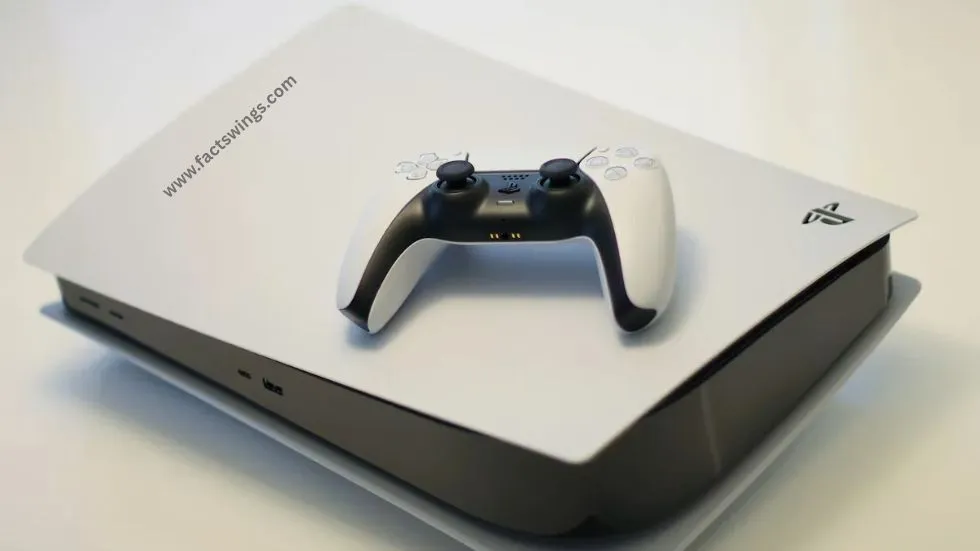
Do you have a PlayStation gift card but do not know how to use it? You can redeem your card on a PS5, PS4, or through the PlayStation Store website. The process is simple when you follow the correct steps.
A PlayStation Store gift card usually contains a code that you enter into your PlayStation account. Depending on the card, it may add money to your wallet or unlock specific digital content. You can then use eligible wallet funds to buy games, add-ons, and other digital products.
In this guide, you will learn how to redeem a PlayStation gift card on PS5, PS4, and the web. You will also learn how to check your wallet balance, fix common code errors, and avoid problems with account regions.
What Is a PlayStation Gift Card?
A PlayStation gift card is a prepaid card or digital voucher that can be redeemed through the PlayStation Store. It is available in different values and may be sold as a physical card or a digital code.
Many people buy these cards for themselves or give them as gifts to friends and family. A recipient can redeem an eligible PlayStation Store gift card and use the resulting wallet funds to make digital purchases.
A standard wallet top-up gift card is different from a voucher for a particular game, subscription, or add-on. Read the card description before redeeming it so you understand what it provides.
What Can You Buy With a PlayStation Gift Card?
If your gift card adds funds to your PlayStation Store wallet, you can generally use those funds for eligible products sold through the store. Depending on availability and the rules for your account, these may include:
- Digital games for PS5 and PS4.
- Downloadable content and game add-ons.
- Eligible in-game currency and digital items.
- Eligible PlayStation Plus subscriptions.
- Other digital products available in your regional PlayStation Store.
A PlayStation Store gift card is intended for digital purchases on PlayStation Store. It is not a general payment card for buying physical consoles, controllers, or other merchandise.
Product availability, prices, subscription options, and payment rules may vary by country. Check the store for your account’s region before making a purchase.
Before You Redeem Your PlayStation Gift Card
Check a few things before entering your code. These simple checks can help you avoid common redemption problems.
- Use the correct account: Sign in to the PlayStation account where you want to receive the funds or content.
- Check the region: The voucher’s country or region must match the country or region of your PlayStation account.
- Check the code: Make sure all digits are readable. Enter the code exactly as shown.
- Check activation: Some physical cards need to be activated by the retailer at the time of purchase.
- Check the voucher type: A wallet top-up code is not the same as a discount code or a code for specific content.
- Use a reliable internet connection: Your console or browser must connect to PlayStation services to complete redemption.
📌 Continue reading here: Best Gadgets in 2026
How to Redeem a PlayStation Gift Card on PS5
You can redeem a PlayStation Store voucher directly on your PS5. Keep your 12-digit code ready before you start.
- Turn on your PS5 and connect it to the internet.
- Sign in to the PlayStation account where you want to redeem the gift card.
- Open PlayStation Store from the console’s home screen.
- Press the Triangle button to open the store menu.
- Select the More (…) option, then choose Redeem Code.
- Enter the 12-digit voucher code carefully.
- Select Redeem and follow any on-screen instructions.
If the code is a wallet top-up voucher, the funds will be added to the account’s wallet when the redemption succeeds. If it is a game or content voucher, the eligible content will be applied to the account instead.
If a download option appears for redeemed content, select it to start downloading. You can usually download eligible content later from your game library.
If you cannot find the Redeem Code option, check that you are inside PlayStation Store and follow the current instructions displayed on your console.
How to Redeem a PlayStation Gift Card on PS4
The PS4 also supports PlayStation Store voucher redemption. The menu looks different from the PS5, but the process is straightforward.
- Turn on your PS4 and connect it to the internet.
- Sign in to the correct PlayStation account.
- Open PlayStation Store.
- Scroll down the left-side menu until you find Redeem Codes.
- Select the option to open the code-entry screen.
- Enter your 12-digit PlayStation voucher code.
- Select Continue, then confirm the redemption when prompted.
- If the voucher provides downloadable content, follow the instructions to download it when available.
📌 Continue reading here: iPhone Duo: Price, Facts and Guide
After successful redemption, wallet funds or eligible content will be linked to the account you used. You do not need to enter the same code again.
If the code has already been redeemed, check your account’s transaction history and game library before trying again. A voucher code can only be used once.
How to Redeem a PlayStation Gift Card on the Web
You do not need to use your console to redeem a gift card. You can also use a web browser on a computer, laptop, tablet, or supported mobile device.
- Open the official PlayStation Store website.
- Select Sign In and log in to your PlayStation account.
- Select your profile avatar near the top of the page.
- Choose Redeem Code from the menu.
- Enter the 12-digit code from your gift card.
- Select Continue and check the information shown on the screen.
- Confirm the redemption to apply the credit or content to your account.
Make sure you are using the official PlayStation website. Avoid entering your account password or gift card code on unfamiliar websites that promise free wallet funds or free gift cards.
Once the code has been accepted, check your wallet or transaction history to confirm that the redemption was successful.
Can You Redeem a PlayStation Gift Card Using the PlayStation App?
Yes. PlayStation also provides a redemption option in the PlayStation App. This can be useful if you want to use your phone instead of a console or computer.
- Open the PlayStation App and sign in to the correct account.
- Select the PS Store icon.
- Open the store menu using the menu icon.
- Select Redeem Code.
- Enter the 12-digit voucher code and select Continue.
- Follow the on-screen instructions to complete the process.
The available menus may vary slightly with app updates. If you cannot find the option, use the web or console method described above.
How to Check Your PlayStation Wallet Balance
After redeeming a wallet top-up gift card, you may want to check whether the money has been added to your account.
On the Web
- Sign in to the PlayStation Store.
- Select your profile icon.
- Open Payment Management.
- Look for your wallet balance on the page.
On PS5
- Open PlayStation Store.
- Press the Triangle button to access the menu.
- Open the More menu if needed.
- Check the wallet balance displayed near your profile information.
On PS4
- Open Settings.
- Select Account Management.
- Open Account Information.
- Select Wallet and sign in if requested.
- Choose Add Funds to view the wallet information and current balance.
Menu labels can change with software updates or regional differences. If you cannot find a setting, use the official PlayStation support instructions for your console.
Why Is Your PlayStation Gift Card Code Not Working?
A PlayStation gift card may fail to redeem for several reasons. Do not assume the card is faulty immediately. Check the following possibilities first.
1. You Entered the Wrong Code
Check every digit and enter the code again. If the numbers on a physical card are difficult to read, inspect them carefully. Avoid guessing a digit because a small mistake can prevent redemption.
2. The Gift Card Is From Another Region
PlayStation voucher codes are region-specific. For example, a voucher issued for one country’s PlayStation Store may not work with an account registered in another country.
Check the country or region printed on the card and compare it with your account’s registered region. Do this before buying a card, especially if you are purchasing it as a gift.
3. The Code Has Already Been Used
Each voucher code can be redeemed only once. If you see a message saying that the code has already been used, check your transaction history and confirm that you are using the correct account.
If you bought the card from a retailer and believe it has been used by someone else, keep your receipt and contact the retailer or PlayStation Support.
4. The Card Was Not Activated
Some physical gift cards need to be activated at the checkout. If your card says that it has no value until activated, contact the retailer and ask them to check the activation status.
Keep your proof of purchase. It may be needed when the retailer investigates the problem.
5. The Code Has Expired or Is Not Yet Valid
Some voucher codes have an expiry date or a specific redemption period. Read the card’s terms and check whether the code is still valid.
6. PlayStation Services Are Having Problems
A temporary service issue may stop you from redeeming a code. Check the official PlayStation Network status page through PlayStation Support. If the service is working normally, sign out and sign back in before trying again.
7. You Are Using a Child Account
Wallet top-up voucher codes cannot be redeemed directly on a child account. The family manager can redeem the wallet top-up on the appropriate account and manage the child’s spending limit.
Can You Redeem a Gift Card From Another Country?
In general, a PlayStation Store voucher must match the country or region of the PlayStation account. A gift card bought in the United States, for example, should not be assumed to work on an account registered in the United Kingdom, Canada, or Australia.
The same rule matters when you buy a card as a gift. Before purchasing it, ask the recipient which PlayStation account region they use and choose a compatible voucher.
PlayStation states that an account’s country or region cannot be changed after the account has been created. Therefore, do not buy a gift card based only on the country where you currently live.
To check your account’s country or region, sign in to Account Management, open Your Information, and select Edit under Residential Address. The registered country or region is shown on that page.
You can find more details in the official PlayStation account country and region guide.
How to Stay Safe When Buying PlayStation Gift Cards
Gift cards are useful, but you should be careful when buying or redeeming them online. Scammers sometimes use fake websites, misleading offers, and stolen codes to trick people.
- Buy gift cards from reputable retailers.
- Check that the card is intended for your account’s country or region.
- Never share your gift card code publicly.
- Do not give your PlayStation password to a seller.
- Avoid websites that promise unlimited free gift cards in exchange for personal information.
- Keep the receipt until the card has been redeemed successfully.
- Use a strong, unique password for your PlayStation account.
- Enable the account security options available to you.
Remember that a genuine gift card does not need your account password to be redeemed. You should enter the code only through the official PlayStation Store or a supported PlayStation interface.
PS5 vs PS4 vs Web: Which Method Is Best?
| Method | Best For | Main Steps |
|---|---|---|
| PS5 | People playing on PS5 | Open Store, select Redeem Code, enter the code. |
| PS4 | People playing on PS4 | Open Store, choose Redeem Codes, enter the code. |
| Web | People using a computer or browser | Sign in, open the profile menu, select Redeem Code. |
| PlayStation App | People using a smartphone | Open PS Store, select the menu, choose Redeem Code. |
All these methods can be convenient. Choose the one you can access most easily. The most important things are to use the correct account, enter the code accurately, and check the voucher’s region.
Frequently Asked Questions
1. How do I redeem a PlayStation gift card?
Sign in to your PlayStation account, open PlayStation Store, select Redeem Code, enter the 12-digit voucher code, and follow the instructions. You can do this on PS5, PS4, the web, or the PlayStation App.
2. How many digits does a PlayStation gift card code have?
PlayStation Store voucher codes contain 12 digits. A 10-digit code is generally a discount code that must be applied during checkout, rather than redeemed as a wallet top-up voucher.
3. Can I redeem a PlayStation gift card online?
Yes. Open the official PlayStation Store website, sign in, select your profile avatar, choose Redeem Code, and enter your code.
4. Can I use a US PlayStation gift card on a UK account?
A voucher must match the region of your PlayStation account. Do not assume that a US gift card will work on a UK account. Check the card’s region before buying it.
5. Can I redeem a PlayStation gift card more than once?
No. A voucher code can only be redeemed once. If you think your code has already been used, check your transaction history and contact the retailer or PlayStation Support if necessary.
6. Why is my PlayStation gift card code not working?
Possible reasons include an incorrect code, a region mismatch, an expired voucher, a card that has not been activated, a previously redeemed code, or a temporary service problem.
7. Can I redeem a gift card on a child account?
Wallet top-up voucher codes need to be redeemed on the family manager’s account, not directly on a child account. Other voucher types may have separate age and account restrictions.
8. Can I transfer PlayStation wallet funds to another account?
PlayStation wallet funds cannot normally be transferred between accounts. Redeem the gift card on the account that should receive the funds.
9. Can I use a PlayStation gift card to buy PlayStation Plus?
Wallet funds from an eligible PlayStation Store gift card can generally be used to purchase an available PlayStation Plus membership. Availability and payment requirements can vary by region and account.
10. What should I do if my gift card was not activated?
Keep your receipt and contact the retailer where you bought the card. Ask the retailer to check whether the card was activated correctly at checkout.
11. Can I change my PlayStation account region to redeem a gift card?
PlayStation states that the country or region of an account cannot be changed after the account has been created. Choose a voucher that matches your existing account region.
12. Where can I get help with a PlayStation gift card?
Visit the official PlayStation Support website. Check the voucher troubleshooting instructions and contact support if your code still does not work.
Final Thoughts
Redeeming a PlayStation gift card is simple when you follow the correct steps. You can use your PS5, PS4, web browser, or PlayStation App to enter your voucher code.
Before redeeming the card, make sure you are signed in to the correct account and that the voucher matches your account’s country or region. Enter the code carefully and keep your receipt until the process is complete.
If the code does not work, check for typing errors, region restrictions, activation problems, and previous redemption. These checks can help you identify the issue before contacting support.
By following this guide, you can redeem your PlayStation gift card with greater confidence and use eligible wallet funds for digital games and other products available in your regional PlayStation Store.
Sources and Fact-Checking
This article is based on official PlayStation documentation. The following sources support the redemption instructions, troubleshooting advice, and account-region information used in this guide.
-
PlayStation Support — How to Redeem a PlayStation Store Voucher Code.
This official guide explains how to redeem codes on PS5, PS4, the web, and the PlayStation App. It also describes voucher types and important redemption restrictions.
Read the official redemption guide -
PlayStation Support — Problems Using Voucher Codes on PlayStation Store.
This source explains common code errors, previously redeemed vouchers, activation issues, and region restrictions.
Read the official troubleshooting guide -
PlayStation Support — Check Your Account’s Country or Region.
This guide explains how to check the country or region registered to a PlayStation account and confirms that it cannot be changed after account creation.
Read the official account-region guide
Editorial note: Interface labels and service availability may change. Check the official documentation for your region if the instructions on your device look different.